Vox Max Android mobile app: features and installation
Download the Vox Max Android mobile app directly from the website. Explore P2P, Playback, EPG, casting, Light and Dark Mode, subtitles, and portrait or landscape viewing.
In this guide
- How to download and install Vox Max on your Android phone
- Finding your way around the app
- P2P technology built into the mobile app
- Playback: catch up on programmes in the archive
- EPG: see what is on and what comes next
- Casting to Android TV devices at home
- Light Mode and Dark Mode
- Subtitles and audio language selection
- Portrait and landscape: viewing adapted to your phone
- What to check when you first use the app
- Frequently asked questions
The Vox Max Android mobile app is designed for watching on your phone, bringing live TV, films and series together in an interface adapted to a mobile screen. The new app includes P2P technology, Playback, an EPG TV guide, casting to compatible Android TV devices at home, Light and Dark themes, subtitles, audio language selection, and support for portrait and landscape viewing.
You can download it directly to your phone from the official Vox Max website, in the Android mobile section. Choose this section when installing the app on your phone: the Android TV version is intended for televisions and compatible TV devices.
How to download and install Vox Max on your Android phone
Installation starts in your phone's browser, directly from the website. You do not need to download the file to a computer and transfer it afterwards.
- Open vox-max.com on your Android phone. Use your usual browser.
- Find the Android mobile section. The website provides separate options for mobile devices and Android TV.
- Tap the download button in the mobile section. Wait for the app file to finish downloading.
- Open the downloaded file. Follow Android's installation instructions. If your phone asks for installation permission for your browser, first check that the file came from the official Vox Max website.
- Open the app and sign in. Use your Vox Max account details.
- Try the features you plan to use. Start a channel, open the TV guide and try viewing in both screen orientations.
If you already had an older version installed, check that you are using the new dedicated mobile app. An interface designed for a remote control and television does not provide the same navigation experience on a touchscreen.
Finding your way around the app
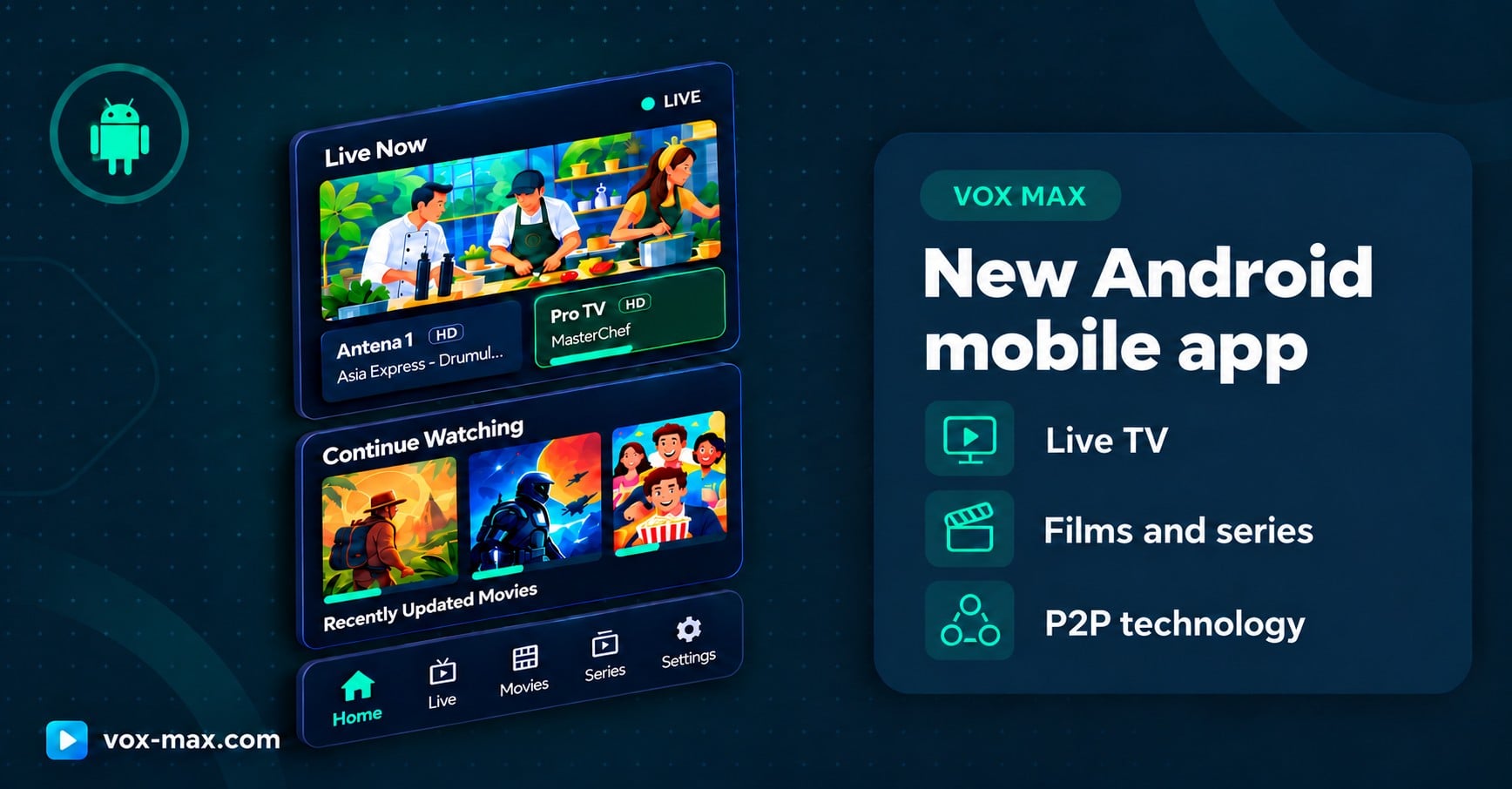
The main navigation has five sections at the bottom of the interface:
- Home: the starting page, with sections such as Live Now, Continue Watching and Recently Updated Movies.
- Live: access to live television.
- Movies: the film library.
- Series: the series library.
- Settings: the app's settings.
This layout lets you move between a TV channel, a film and a series from the main menu. Continue Watching helps you find content you have already started, while Recently Updated Movies highlights films updated in the library.
P2P technology built into the mobile app
The new app uses P2P — Peer-to-Peer technology to distribute content. In this model, participating devices can help pass on video segments, while the app manages receiving and playing them.
You access content through the Vox Max interface: choose a channel or title and start watching. There is no need to manage the exchange of data between participants manually.
Distribution technology is one part of the experience. Connection quality and your phone's capabilities still matter, so it is worth testing the app on the device you will use every day.
Playback: catch up on programmes in the archive
The Playback feature lets you watch programmes after they have aired, when recordings are available in the service's archive. Vox Max offers up to 7 days of catch-up.
This is useful if you missed a live broadcast or want to return to a programme. Check availability in the app: the period of up to 7 days applies to recordings that exist in the archive.
Playback complements live viewing and gives you more flexibility over when you watch television.
EPG: see what is on and what comes next
EPG stands for Electronic Programme Guide. It displays the available schedule information for channels, helping you identify the current programme and see what is coming next.
You can consult the guide before choosing what to watch, rather than switching between channels to find out what is on. The information shown depends on the schedule data available for each channel.
EPG and Playback have different roles: the guide helps you navigate the schedule, while Playback provides access to programmes that have already been recorded and are available to watch again.
Casting to Android TV devices at home
The mobile app supports casting to other compatible Android TV devices in your home. This lets you select content on your phone and watch it on a larger screen.
Use the app's casting feature and select an available destination device. Follow the connection instructions shown for your chosen device.
The receiving device's compatibility matters. To use the app directly on your television, follow the separate steps in the Vox Max installation guide for Android TV.
Light Mode and Dark Mode
You can choose between Light Mode, with a bright interface, and Dark Mode, with a dark background. This lets you adapt the app's appearance to your preferences and the conditions in which you use it.
The theme changes how the interface looks. Channels, films and series remain accessible through the same sections of the app.
Subtitles and audio language selection
The app provides options for subtitles and audio track selection. When a programme includes more than one option, you can choose the available language you prefer.
Options vary between channels and titles. One film may include several subtitle languages and audio tracks, while another may offer only a single version.
If your preferred language does not appear in the list, check its availability for that programme. Language selection uses the tracks included with the content.
Portrait and landscape: viewing adapted to your phone
The new app supports portrait orientation, with the phone held vertically, and landscape orientation, with the phone held horizontally.
Portrait mode is practical for browsing menus and choosing content. Landscape mode provides a viewing area suited to widescreen video.
If the orientation does not change as expected, check your phone's screen rotation setting and then the viewing options available in the player.
What to check when you first use the app
Start with a live channel, then try Playback and a film. Test the audio and subtitle options on a title that offers them, and try both themes.
If you plan to cast content, also test the Android TV device in your home. If it does not appear among the available options, check the connection instructions and device compatibility. For playback difficulties, compare several channels and check the stability of your connection.
If you need help, give support your phone model, app version and a description of the issue. You can also consult the Vox Max FAQ.
New users can start with the free 24-hour trial, then explore the available subscription plans.
Frequently asked questions
Where can I download the Vox Max Android mobile app?
Download it directly from the official Vox Max website, opened in your phone's browser. Choose the download button in the Android mobile section.
Should I install the version from the Android TV section on my phone?
For your phone, choose the dedicated Android mobile version. The Android TV section provides the app for televisions and compatible TV devices.
Can I send content from my phone to my television?
Yes, using the casting feature with compatible Android TV devices at home. Follow the connection instructions for your chosen device.
Do all programmes have subtitles and several audio languages?
The options depend on the tracks available for each channel, film or episode. The app lets you select the options included with that content.
Can I use both vertical and horizontal viewing?
Yes. The app supports portrait and landscape orientations, so you can browse and watch in the orientation that suits you.

More guides
-
Setup and devices
How to install Vox Max on Android TV: step-by-step guide
Install Vox Max from Google Play or with Downloader, sign in with your emailed details, and fix the most common setup problems.
-
Setup and devices
Vox Max on Samsung and LG: why we recommend Android TV
For Vox Max, we recommend a dedicated Android TV device rather than the built-in Samsung or LG smart TV system. Keep your television and connect a recommended device via HDMI.
-
Plans and free trial
The Vox Max 24-hour free trial: how it works
How to start the free trial step by step, what to test in those 24 hours, and what happens when it ends.